
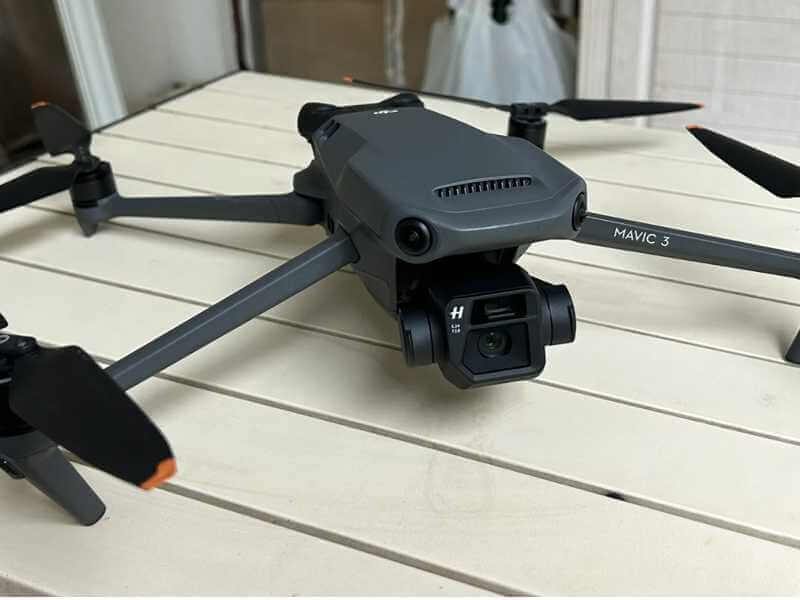
Mavic 3 Gimbal Jitter Fix: An Easy 5-Step Troubleshooting Guide
Mavic 3 gimbal jitter is one of the most frustrating—and common—issues encountered by a UAV diagnostics engineer. This problem, which manifests as shaky, unstable footage or a camera that’s permanently tilted, can transform a cinematic flight into a useless take. This Mavic 3 gimbal jitter fix guide provides a systematic, root-cause analysis and a clear path to resolution, whether you’re a hands-on pilot or need to know when to call in the experts.
Part 1: Analyzing the Root Causes of Mavic 3 Gimbal Jitter Fix
Effective troubleshooting starts with accurate diagnosis. The Mavic 3 gimbal jitter issue typically stems from three primary domains: hardware, software, and environment.
عوامل الأجهزة
- العوائق المادية: The most common and easily overlooked cause. Always ensure the gimbal protector and any transport securing clips have been completely removed.
- مخمدات تالفة: The gimbal is mounted on small, rubber-like dampening balls. Over time, these can harden, crack, or tear. This is a very frequent source of the Mavic 3 gimbal jitter.
- سلامة المروحة: A chipped, bent, or unbalanced propeller will create significant vibration, leading to gimbal jitter.
- تاريخ التأثير: Any hard landing or collision can misalign the gimbal or damage its internal ribbon cables. A tilted horizon is a classic symptom.
عوامل البرمجيات
- عدم توافق البرامج الثابتة: A buggy update can cause communication errors between the gimbal and flight controller. Always check for the latest stable firmware from DJI’s official support page.
- إعدادات المحورين (EXP): In the DJI Fly app, Gimbal Advanced Settings allow Expo adjustment. Setting it too high can mimic jitter behavior.
العوامل البيئية
- رياح عاتية: The gimbal motors work harder in strong wind, sometimes resulting in slight vibrations.
- Flight Mode: Cine mode prioritizes smooth movement and reduces jitter, while Sport mode is more susceptible.
Part 2: The Standard Mavic 3 Gimbal Jitter Fix Protocol
Follow these steps in order. Do not skip the preliminary checks.
Step 1: Physical Inspection
- قم بإزالة واقي المحور وجميع المشابك.
- Power on and listen for grinding noises.
- Inspect all four dampening balls for wear.
- Check propellers for nicks or cracks.
Step 2: Update Firmware
- تأكد من تحديث تطبيق DJI Fly الخاص بك.
- Connect and check for firmware updates. See DJI firmware update guide.
الخطوة 3: تنفيذ معايرة الانحراف
- Find a perfectly level surface.
- In DJI Fly app, go to Control > Gimbal Calibration.
- Follow on-screen prompts. Keep the drone still during calibration.
- Power cycle the aircraft and check if the Mavic 3 gimbal jitter is resolved.
Step 4: Optimize Flight Mode
- Use Cine mode for smooth shots.
- Reduce Gimbal Pitch EXP to 0.30 for smoother control.
Part 3: Advanced Mavic 3 Gimbal Jitter Fix When Calibration Fails
استكشاف الأخطاء وإصلاحها المتقدم
- معايرة وحدة القياس الدولية والبوصلة: Perform IMU calibration on a level surface. Calibrate the compass in an open area away from metal.
- Reset All Gimbal Settings: In the app’s camera settings, choose “Reset All Gimbal Settings.”
When to Seek Professional Help
- أخطاء “تحميل محرك المحرك المحوري الزائد” المستمرة.
- Physically tilted horizon that calibration cannot fix.
- Visible damage to the gimbal arm.
- Grinding noises from the gimbal.
At this stage, the problem is likely a damaged micro-motor, faulty ribbon cable, or damaged mainboard — issues requiring specialized tools. For a cost comparison, read our guide on drone repair costs: DIY vs professional service.
How to Safely Send Your Drone for Repair
- Back up data and remove the SD card.
- Remove the battery before shipping.
- Use secure packaging with 2+ inches of padding.
- Describe the issue precisely to support.
If your Mavic 3 needs a ribbon cable or gimble part replacement, browse our drone parts shop for genuine OEM replacement components. For official DJI Mavic 3 specifications, visit the DJI Mavic 3 product page. For community troubleshooting, see r/dji on Reddit.

